
Key Takeaways
- ✓ The Amazon Storefront hero banner is 3,000 × 600 px with a 5 MB max file size, per Amazon’s own Stores creative guidelines (advertising.amazon.com) — and the brand logo tile is 400 × 400 px with the same 5 MB cap.
- ✓ On screens below 1,500 px wide, up to 16% of the left and right sides crop off, and the nav logo covers roughly another 18% of the left side on small screens — so logos and headline text must live in the centre safe zone.
- ✓ Tile minimums: full-width tiles 1,500 px wide (3,000 px recommended), large tiles 1,500 × 1,500, medium 1,500 × 750, small 750 × 750, custom mobile tiles 1,680 px wide — all capped at 5 MB per file.
- ✓ Amazon discourages text baked into images because it is not readable by search engines or screen readers — use the “Image with text” tile when copy matters.
- ✓ Never bake prices into a banner; treat every banner as a brand statement with one headline, minimal text, and a mobile preview before you submit — specs can change, so verify in the Store Builder at upload time.
Your storefront hero is 3,000 pixels wide. And on a phone, Amazon chops 16% off each side before anyone reads a word.
That is the single most expensive layout mistake I see in Amazon storefronts. A brand pays for a beautiful 3,000×600 hero banner, centres nothing, spreads the headline across the full width — and on mobile, the product name and the offer vanish behind a crop the designer never checked. The banner looks perfect on desktop and broken where most shoppers actually look at it.
Mobile-first is standard practice in Amazon design now, and the storefront hero is where the mobile-first rule bites hardest. Get the specs right, design inside the safe zone, and your banner survives every screen. Get them wrong and you re-do the work — or worse, you never notice it is broken.
This is the storefront twin of my listing-page spec piece (post 610 covers A+ module sizes). Here is every banner spec Amazon publishes, plus the design rules I use on client storefronts.
How big is the Amazon Storefront hero banner?
The hero image — the big banner at the top of your storefront — is 3,000 × 600 pixels, with a maximum file size of 5 MB. That figure comes straight from Amazon’s Stores creative guidelines page, which I checked against on 23 October 2026.
For a while this figure only came from third-party agencies, so I would not print it as a hard spec — Amazon’s own guidelines page now publishes it directly, which is why this article can state it plainly. Still, verify the spec at upload time before you finalise a design.
Hero and logo specs (Amazon’s Stores creative guidelines)
| Element | Dimensions | Max file size |
|---|---|---|
| Hero image (storefront banner) | 3,000 × 600 px | 5 MB |
| Brand logo | 400 × 400 px | 5 MB |
The logo sits in the storefront navigation bar, not in the hero. Keep it simple — a clean mark or wordmark reads best at that size, and it appears on every page of your storefront.
What are the image tile sizes for storefront pages?
Heroes are not the only banners on a storefront. Image tiles carry the rest of the layout: full-width section banners, large/medium/small tiles, and optional custom mobile versions. Here are the specs, all from the same Amazon guidelines page.
Tile specs (Amazon’s Stores creative guidelines)
| Tile type | Minimum dimensions | Max file size |
|---|---|---|
| Full-width tile | 1,500 px wide (3,000 px recommended for hi-res) | 5 MB |
| Large tile | 1,500 × 1,500 px | 5 MB |
| Medium tile | 1,500 × 750 px | 5 MB |
| Small tile | 750 × 750 px | 5 MB |
| Custom mobile tile image | 1,680 px wide (3,000 px recommended) | 5 MB |
The “recommended” figures matter more than the minimums: a 1,500 px-wide full-width tile looks soft on a large desktop monitor, so I design at the hi-res recommendation and compress down to the 5 MB cap.
Why does my hero banner crop on mobile?
Because Amazon’s storefront is responsive, and the hero is the most responsive element on the page. Two things happen on smaller screens:
- Side cropping. On screens below 1,500 px wide, up to 16% of the left and right sides of the hero crop off. A third-party analysis at visualhierarchy.co, citing Amazon’s own guidelines, frames this as up to 30% total horizontal crop — I am printing Amazon’s own 16%-per-side figure, and the practical conclusion is identical: the edges are expendable.
- Nav logo overlap. On small screens, the navigation logo covers roughly another 18% of the left side of the hero.
That is a lot of real estate you cannot trust with important content: anything living in the outer zones is decoration on a phone. The only reliable real estate is the centre.
This is exactly the safe-zone discipline I described for the Brand Story carousel in today’s companion piece on Brand Story image sizes and requirements — the two placements share the same “design for the crop” logic, and the same day’s article goes deeper on the Brand Story side.
The Safe-Zone Method: how I lay out every hero
I use a named layout rule on every storefront hero I design. Here is the full method, step by step:
Step 1 — Build the full 3,000 × 600 canvas. This is your desktop presentation. It should look complete and beautiful on a wide monitor, because desktop shoppers exist and your brand deserves to look premium there.
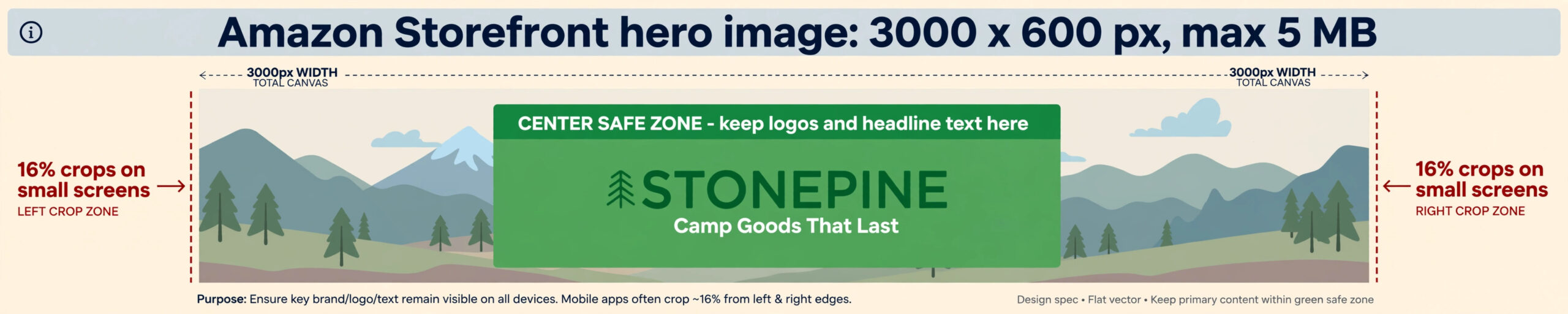
Step 2 — Mark the crop zones. Shade the 16% crop bands on each side (roughly 480 px) and block off ~18% on the left for nav-logo overlap on small screens. What is left — about 68% of the width — is the safe zone.
Step 3 — Put everything that matters in the centre. Logo, headline, sub-headline, the one product shot that sells the story — all inside the middle ~68%. The crop bands carry atmosphere only: gradients, blurred lifestyle imagery, textures. Beautiful on desktop, meaningless if cut.
Step 4 — Test the crop before you submit. Shrink the canvas to a phone width and confirm the headline reads with both sides cropped. Anything clipped does not belong outside the centre.
The diagram below shows the layout — the 3,000 × 600 canvas with the 16% crop zones marked on each side and the centre safe zone highlighted. The fictional brand “Stonepine” here is purely illustrative.
What makes a good storefront banner design?
Specs are the admission ticket. Design is what makes the banner do its job. Here are my working rules.
One headline per banner. The hero has one job: state the core promise of the brand. “Camp Goods That Last” beats “Welcome to our store — we sell tents, sleeping bags, backpacks, and camping accessories at great prices.” If the headline needs a second sentence, it needs a second banner.
Hero states the core promise; tiles do the wayfinding. The hero is the brand statement; the tiles beneath are signposts (“Tents,” “Sleep Systems,” “Cookware”) that route shoppers. That routing job belongs to page architecture — my page architecture guide goes deeper.
Keep text minimal on image tiles. Amazon’s own guidance says text baked into images is not readable by search engines or screen readers — so use the “Image with text” tile when the copy matters. Less text also survives the mobile crop better.
Never bake prices into banners. Prices change; banners do not update themselves. Beyond the practical headache, my earlier research on storefront rejections flagged price claims in banners as a rejection trigger. Keep the banner timeless.
Watch the link-title band. Adding a link title overlays it on the tile — obscuring roughly 19% of the bottom on rectangle tiles and ~12% on square tiles. Keep copy and CTAs above that band.
Mobile preview before every submit. Custom mobile tiles are optional per tile and not aspect-ratio-locked — you can tailor the mobile version, but Amazon will not force you to. Preview every tile on desktop and mobile before submitting.
Annotated example: a hero done right
Let me walk through a fictional example so you can see the Safe-Zone Method in practice. Imagine a camping brand, “Stonepine” (illustrative — not a real client).
The setup. A 3,000 × 600 canvas with a mountain-panorama composition that looks complete on desktop.
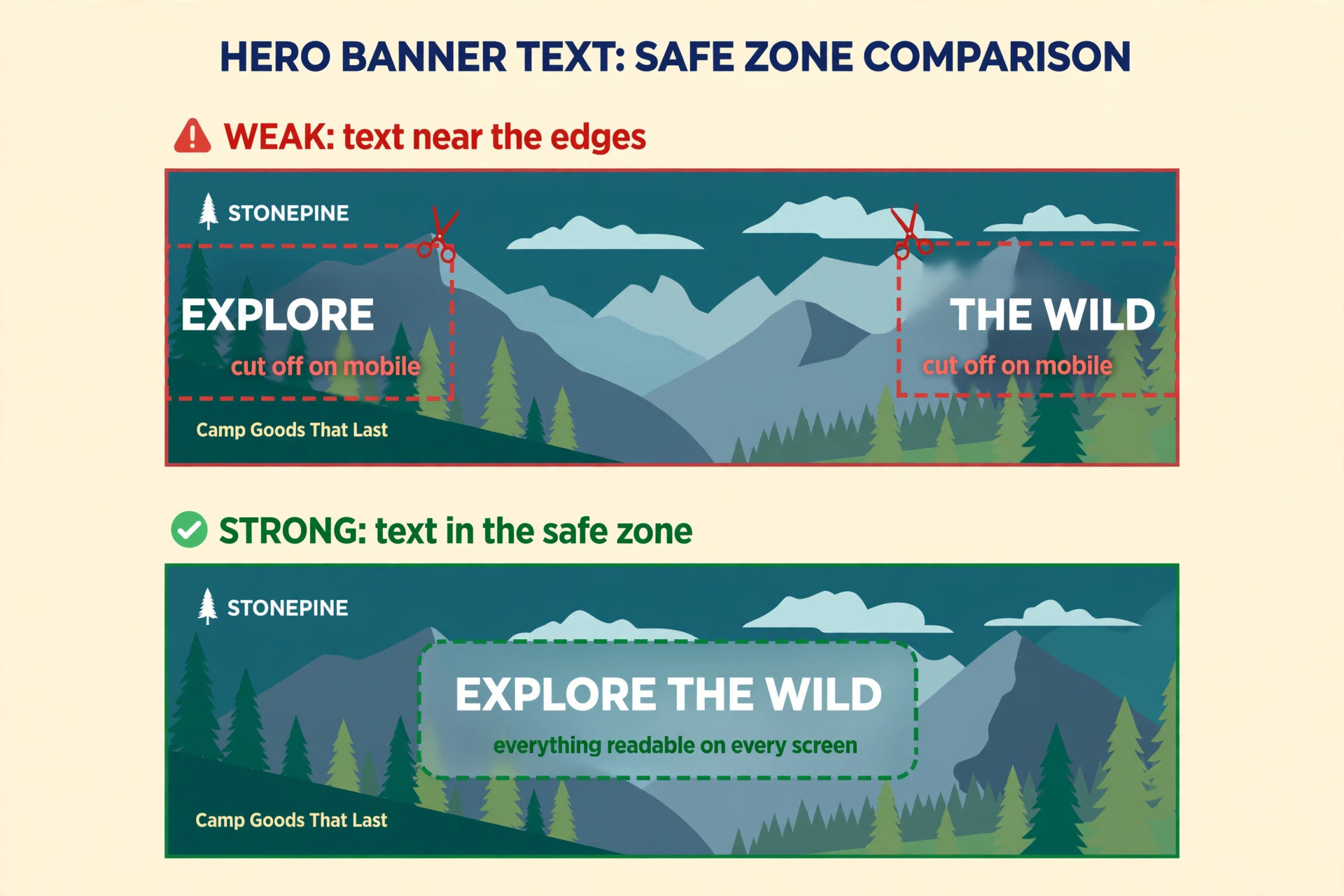
The centre. Inside the middle ~68%: the Stonepine wordmark, the headline “Explore the Wild,” and the tagline “Camp Goods That Last,” plus one hero tent shot. Everything a shopper needs to understand the brand is in the safe zone.
The crop bands. Left and right 16% carry atmosphere only — more mountains, more trees. Expendable on mobile; the nav-logo overlap costs nothing.
The mobile check. Crop both sides off mentally: what remains is the wordmark, the headline, the tagline, and the tent. The banner still tells the whole brand story. That is a hero done right.
For pattern inspiration — real layout patterns with annotated breakdowns — my storefront examples piece covers the structures I see working; this article stays focused on specs and design rules.
The contrast is starkest side by side. The graphic below shows the same fictional Stonepine banner twice: text near the edges (cut off on mobile) versus text in the safe zone (readable on every screen). Illustrative — not client work.
Mistakes I See Constantly
Designing one wide canvas and never testing the crop. This is the mistake this whole article exists to prevent. The designer works at 3,000 px wide, centres nothing deliberately, and the banner ships. On a phone, 32% of it is gone. Always run the crop test.
Spreading the headline across the full width. Long headlines feel premium on desktop — and become a clipped mess on mobile. One headline, short, centred. If it is longer than five or six words, shorten it.
Baking prices, dates, or “20% off” into the hero. Storefronts have a review process, and promotional claims baked into banners are a rejection trigger. Banners are brand statements; run promotions through Sponsored Brand or coupon placements.
Text-heavy tiles instead of “Image with text.” I still see tiles with paragraphs baked into the artwork — small, unreadable on mobile, invisible to screen readers. If the copy matters, use the tile type Amazon built for it.
Ignoring the link-title band. Treat the bottom ~19% of rectangles and ~12% of squares as an overlay zone from the start — otherwise your link title will land on top of your CTA text.
Uploading at the minimum resolution. The 1,500 px minimums are floors, not targets. On a hi-res desktop display, a minimum-resolution tile looks soft next to your competitor’s crisp one. Design at the recommended 3,000 px figures and compress to 5 MB.
Forgetting the mobile tile option. If your hero relies on wide composition, design a purpose-built mobile version rather than hoping the crop is kind.
Pre-publish checklist: banner QA before you submit
Run through this before any banner goes live:
- Dimensions match spec: hero 3,000 × 600; tiles at or above minimums (preferably the hi-res recommendations)
- Every file under the 5 MB cap
- All logos, headlines, and key imagery inside the centre safe zone
- Mobile crop test done — headline and brand fully readable with both 16% bands cropped
- No prices, dates, or promotional claims baked into the banner
- Text is minimal on image tiles; “Image with text” tile used where copy matters
- Link-title overlays checked — no CTA text under the bottom overlay band
- Every tile previewed on desktop AND mobile
- Specs verified in the Store Builder at upload time (Amazon updates guidelines)
Your 2-week action plan: from broken banners to storefront-ready
Week 1 — Audit and spec check. Open your storefront on a phone and screenshot every hero and tile. Mark anything clipped, unreadable, or awkward — and confirm the current specs in Amazon’s Store Builder, because guidelines change and your audit should use today’s numbers.
Week 2 — Redesign and relaunch. Rebuild each failing banner with the Safe-Zone Method: one headline, centre-safe content, hi-res assets, no baked-in prices. Upload, preview on both viewports, and check the link-title bands. Storefronts go through a review — submit early enough that a rejection still leaves you time to fix and resubmit.
And if storefront strategy is the gap, not just banners: my storefront vs Brand Story comparison helps you decide where to invest creative effort first, and the architecture article shows how pages and banners work together. If you would rather hand the whole thing over, that is what I do — reach out on the contact page.
FAQ
What size should my Amazon Storefront hero banner be?
3,000 × 600 pixels, max 5 MB, per Amazon’s Stores creative guidelines (advertising.amazon.com), checked 23 October 2026. Verify in the Store Builder at upload time in case Amazon updates the spec.
How much of the hero crops on mobile?
On screens below 1,500 px wide, up to 16% of the left and right sides crop off. Additionally, the nav logo covers roughly 18% of the left side on small screens. Keep all important content in the centre safe zone.
Can I use text in my storefront banner?
Yes, but keep it minimal. Amazon discourages baked-in text because search engines and screen readers cannot read it — use the “Image with text” tile when the copy matters. And always keep text in the centre safe zone so the mobile crop cannot cut it.
Do I need Brand Registry for an Amazon Storefront?
Yes — a Brand Store is only available to brand owners enrolled in Amazon Brand Registry. If you are weighing Brand Story vs Storefront as the brand-content investment, my Brand Story vs Storefront comparison walks through the trade-offs.
Should I design a separate mobile version of my hero?
You can set a custom mobile tile image per tile (1,680 px wide minimum, 3,000 px recommended), and it is not aspect-ratio-locked. If your desktop hero relies on wide composition, a purpose-built mobile version is worth it — either way, preview on both viewports before submitting.
All specs in this article come from Amazon’s Stores creative guidelines page (advertising.amazon.com/resources/ad-specs/stores), checked 23 October 2026. Amazon updates its guidelines, so verify the numbers in the Store Builder at upload time.

Azam Khan Tarakai
Founder, Lystiq Creative — Amazon Listing Image & A+ Content Designer
I design Amazon listing images, A+ Content, Brand Stories and Storefronts that turn browsers into buyers — built on my C.A.S.H. Creative Framework™.